openwebrxplus-plugins
This receiver plugin adds a high-performance frequency scanner to OpenWebRX+. It uses FFT-based “Virtual Scanning” to analyze the waterfall data and jump directly to active signals. It includes features like a blacklist, digital signal filtering, and multiple scan modes.
Preview
Load
Add this line in your init.js file:
//remote
Plugins.load('https://0xaf.github.io/openwebrxplus-plugins/receiver/freq_scanner/freq_scanner.js');
// local
Plugins.load('freq_scanner');
Usage
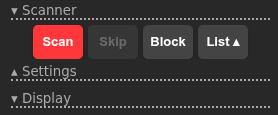
On newer OpenWebRX+ versions, open the Frequency Scanner section in the receiver panel. It contains the display and Scan, Skip, Block, and Setup controls. Closing the section does not stop a running scan. Setup and Manage Blacklist use built-in plugin windows when available; Scan and Block long-press menus stay next to their buttons.
On older OpenWebRX+ versions, the SC button at the bottom left of the receiver panel opens the original draggable scanner panel. The original setup menus and blacklist editor remain available when the built-in window API is missing.
Scanner Status
The native section title is green while scanning, yellow in Edit Blocks mode or while blocked ranges are shown, and uses its normal color otherwise. On older versions, the SC button retains its existing status colors:
- Grey: Scanner is stopped and window is closed.
- Green: Scanner window is open.
- Yellow: Scanner is running in the background OR “Always Show Blocked Ranges” is active (window closed).
- Yellow Border: “Edit Blocks” mode is active (can move/resize ranges via touch).
Scanner Display
The display area uses red text on a deep blue background:
- Ready: The scanner is currently stopped.
- Scanning…: The scanner is actively searching for signals.
- Frequency / Name: When a signal is detected, the frequency is displayed. If the frequency matches a bookmark, the bookmark name is shown instead.
- wait: A small “wait” indicator appears when the scanner is holding on a frequency during the delay time (after signal loss) before resuming the scan.
Scanner Window Buttons
- Scan: Start or Stop scanning.
- Long Click (> 800ms): Opens the Scan Options menu (indicated by a triangle).
- Skip: Skips the current frequency (only active when scanning).
- Block: Adds the current frequency to the blacklist.
- Long Click (> 800ms): Opens the Block Options menu (indicated by a triangle).
- Setup: Opens the Scanner Setup & Blacklist menu.
Scan Options (Scan Button)
- Scan Modes:
- Normal (Carrier): Stays on frequency while a signal is present (plus a short delay).
- Stop on signal: Stops scanning completely when a signal is found.
- 10s Sample: Listens for 10 seconds, then continues scanning regardless of the signal.
- Detection Logic:
- Standard (Squelch): Simple detection based on the UI squelch slider.
- Width Filter (<= Bandwidth): Intelligent detection that adapts to your current filter width (e.g., NFM, AM). It ignores signals wider than your filter or narrower than 20% of it. It also features Plateau Detection to skip broad noise and Split-Peak Detection to correctly identify digital twin-carrier signals.
- Ignore Squelch Slider (Auto): Only available with “Width Filter”. If enabled, the scanner ignores the manual squelch slider and uses an internal SNR-based threshold to find even very weak signals automatically.
- Delay: Set the wait time after signal loss (Standard, 5s, 10s).
- Dwell Time: Slider to adjust how long the scanner stays on a frequency to verify a signal before moving to the next peak. Increasing this helps with slow FFT updates or weak signals.
- Filter: Only Analog: If enabled, the scanner automatically skips frequencies marked as digital (DMR, YSF, D-Star, etc.) in your bookmarks.
Block Options (Block Button)
- Clear Visible Blocked Ranges: Removes all blacklist entries that are currently visible in the waterfall view.
- Remove Blocked Range: Allows you to remove a specific blocked range or frequency by clicking on it in the waterfall.
- Block Range: Allows you to select a frequency range on the waterfall to block. Click and drag to define the range.
Scanner Setup (Setup Button)
- Always Show Blocked Ranges: If enabled, blocked frequencies and ranges are visualized as colored bars on the waterfall even when the scanner is not running.
- Edit Blocks (Move/Resize): Enables interactive manipulation of blocks. Drag the edges to resize the range or the center to move it.
- Color Picker: Choose from different colors for the blocked range visualization (Red, Orange, Yellow, Green, Blue, Purple, White).
- Export / Import Plugin Settings: Save or load the plugin configuration including the blacklist (JSON).
- Manage Blacklist: Opens a dialog to manually manage the blacklist entries.
- Clear Blacklist: Removes all blocked frequencies.
- Audio Sync: Slider to adjust the synchronization delay (bridges short signal dropouts).
- Bookmark Tolerance: Slider to adjust the frequency matching tolerance for bookmarks.
Interaction & Performance
- Smart Analysis: The scanner uses Sparse Scanning (checking every 4th-8th bin) and accesses the core
wf_datadirectly. This makes it highly CPU-efficient, especially on mobile devices. - Virtual Scanning: The scanner “teleports” directly to signal peaks, eliminating the need for slow linear stepping and reducing network overhead.
- Squelch: By default, the scanner uses the current squelch level set by the slider in the OpenWebRX+ interface. This can be bypassed using the “Ignore Squelch” option in Width Filter mode.
- Hysteresis: Once a signal is locked, the squelch threshold is internally lowered by 2 dB to provide stable reception during signal fading.
- DC-Spike Protection: Technical interference at the center frequency (+/- 1.5 kHz) is automatically ignored to prevent the scanner from getting stuck.
- Manual Tuning: Clicking on the waterfall while scanning stops the scanner.
- Dynamic Step Size: The scanner automatically calculates the optimal jump distance based on twice the current filter bandwidth to ensure fast and reliable scanning.
- Modulation: The scanner is active for NFM, AM, FM, SAM, USB, LSB, and CW.
- Visualizer: Blocked ranges are shown as semi-transparent bars. High-performance rendering remains stable even when zooming deep into the spectrum (OpenWebRX+ offset-aware).
Configuration
No manual configuration in init.js is required. The plugin automatically adapts to the current profile, center frequency, and bandwidth.
License
MIT